How to Write a Weekly Report to Your Manager (Template)
It's Friday at 4 p.m. You open a blank email to your manager and try to remember what you did on Monday. You know you were busy all week. You just can't say with what.
Most weekly reports are hard for one reason. We write them from memory, all at once, at the end of the week. By then the details are gone, so we fill the gaps with vague lines like "worked on the project" and hope nobody asks.
There's an easier way. Write down a little as you go, use the same short format every week, and let a tracker do the adding up. Below is a simple format, then how we use IAM Rate to fill it in with almost no extra work.
What your manager actually wants
Your manager doesn't want a diary of your week. They have several people to keep track of, and they read your report in a minute or two. Most of them want answers to four questions:
- What got done? Finished work, written as results, not effort.
- Where did the time go? A rough split, so they can see if the week matched the plan.
- What's next? Your plan for the coming week.
- Is anything stuck? Blockers, risks or decisions you need from them.
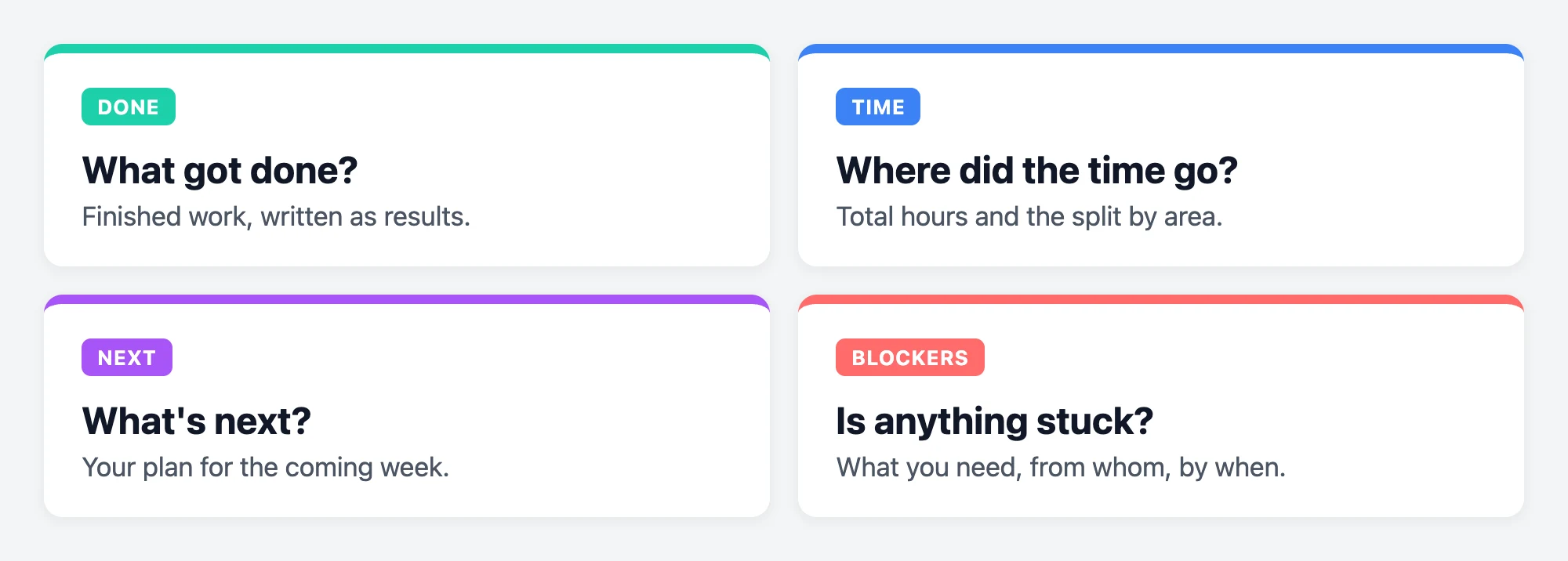
That's it. If your report answers those four questions in under a page, it's a good report. Anything longer usually gets skimmed.
A simple weekly report template
Use the same layout every week. Your manager learns where to look, and you never have to decide how to start.
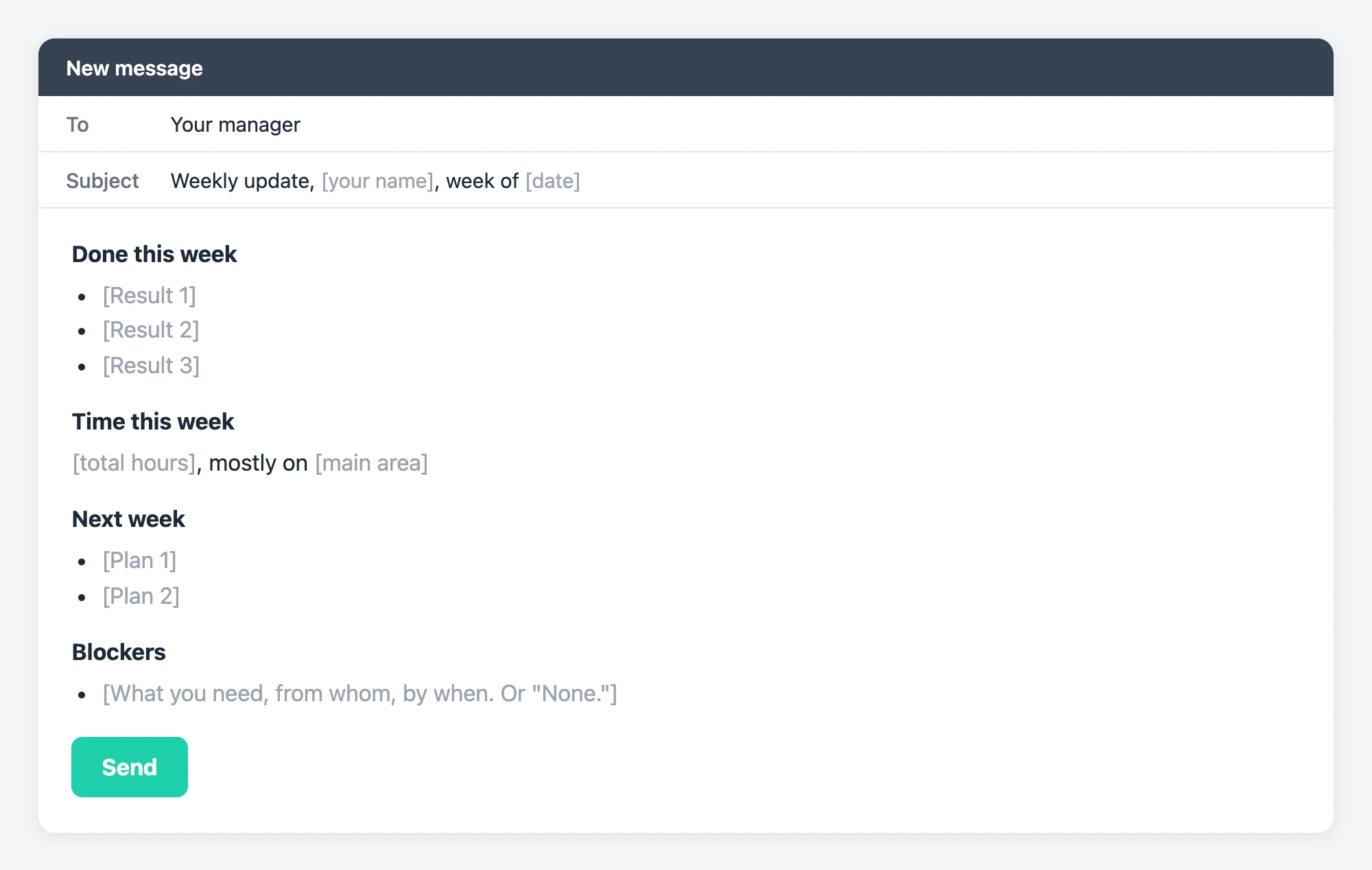
Copy it from here:
Subject: Weekly update, [your name], week of [date]
Done this week
• [Result 1]
• [Result 2]
• [Result 3]
Time this week: [total hours], mostly on [main area]
Next week
• [Plan 1]
• [Plan 2]
Blockers
• [What you need, from whom, by when. Or "None."]
The hard part isn't the template. It's having the facts ready on Friday. That's the part a tracker can handle for you.
Monday to Thursday: collect the facts as you go
The trick is to spend a few seconds after each task instead of thirty minutes on Friday. Here's what that looks like in IAM Rate.
Log each task when you finish it
When you finish something, add it with the Add Task form. Type the task name, enter the hours and minutes it took, pick the Work category and click Add Task. There's no timer to start and stop, so you can't forget to stop it.
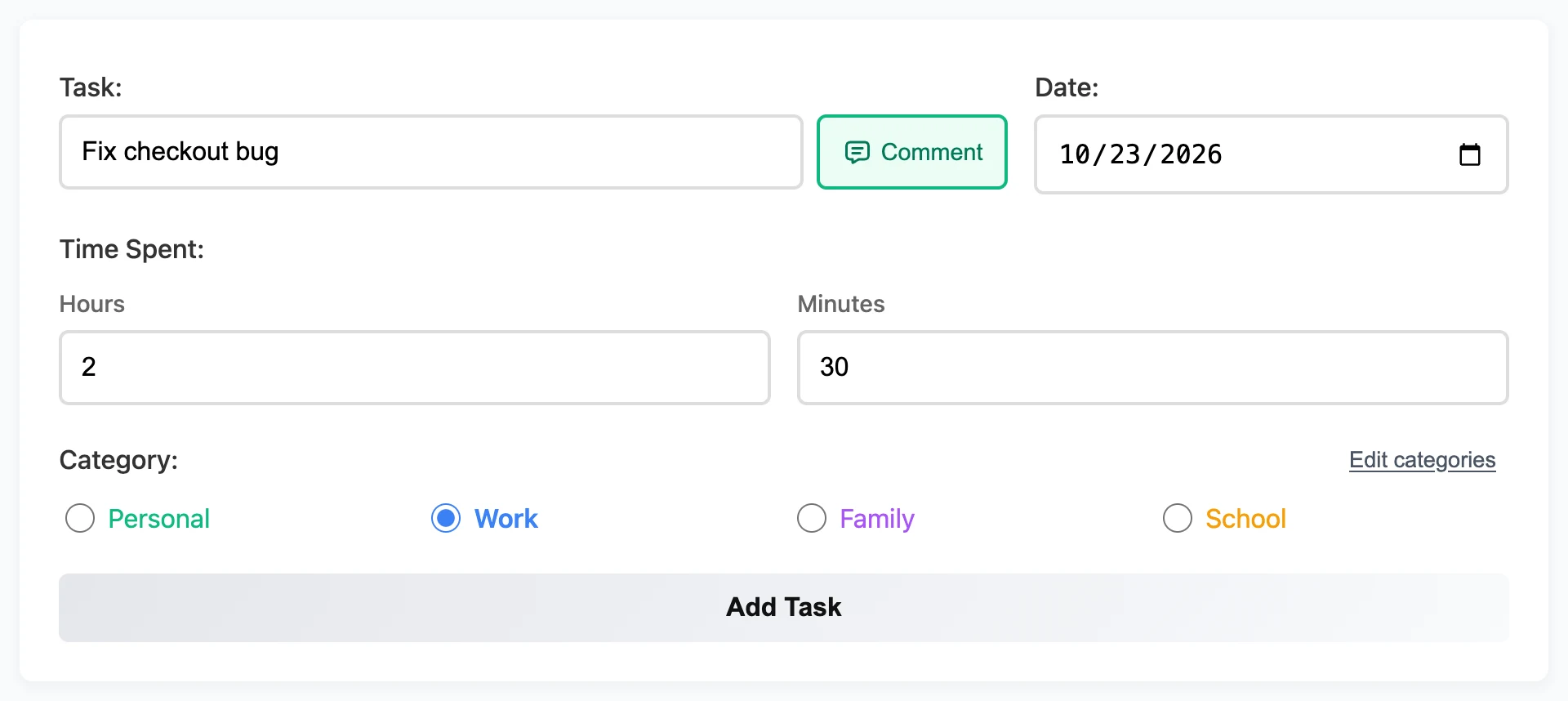
Use the same name for the same kind of work. The task box suggests names you've used before, so "Client onboarding calls" stays "Client onboarding calls" all week. That keeps your totals clean.
Forgot to log a meeting yesterday? Pick yesterday's date and add it there. Your week stays complete.
Add a one-line comment for the report
This is the step that saves you on Friday. Next to the Task box is a Comment button. Click it and write one sentence about the task, up to 500 characters. The note is saved with the task when you click Add Task.
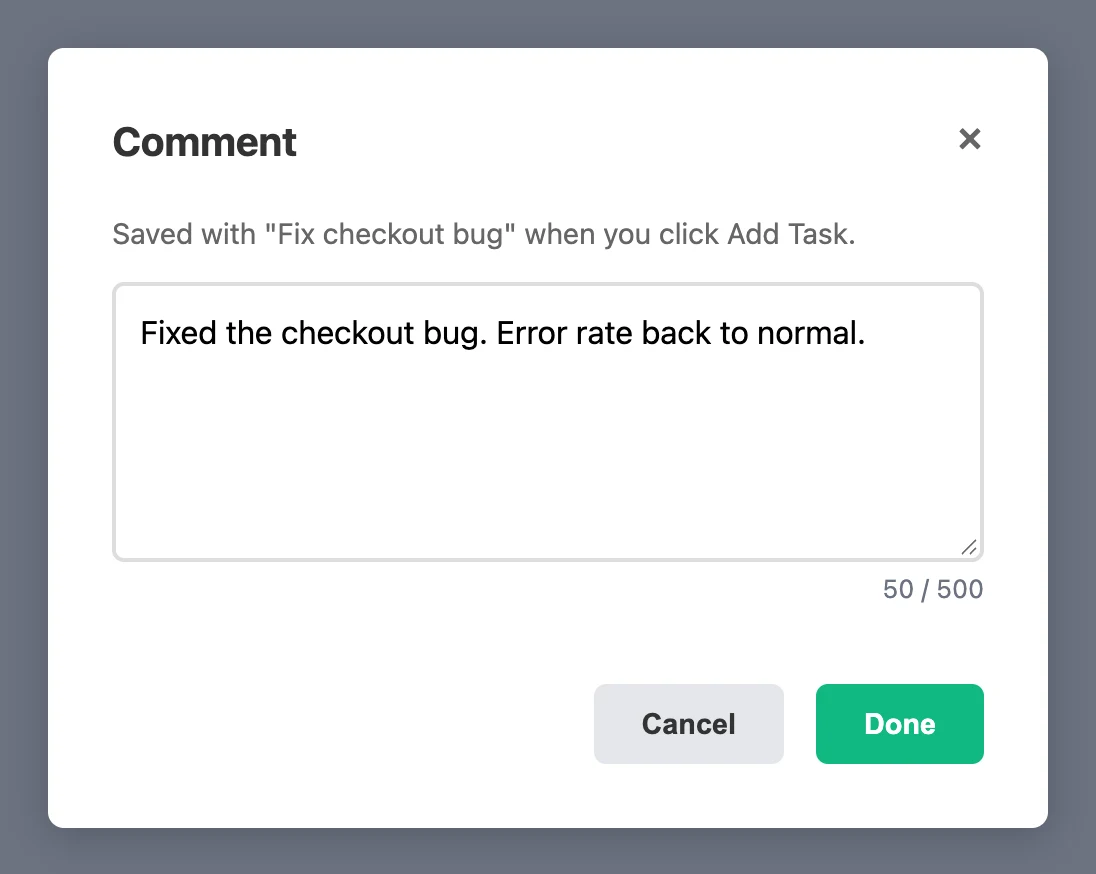
Write the comment for your manager, not for yourself. A good comment says what changed or what comes next:
- "Fixed the checkout bug. Error rate back to normal."
- "Sent the Q4 budget draft to finance. Waiting on their numbers."
- "Blocked: need admin access to the analytics account."
Notice that the last one is a blocker. If you start a comment with "Blocked:", it's easy to spot on Friday, and it goes straight into the last part of your report.
Tip: Write the comment right after the task, while you still remember the details. One sentence is enough. By Friday, those sentences are most of your report.
Use the To-Do List for next week and unfinished work
Two things slip through the cracks every week. One is the request that comes in on Tuesday but can't start until next week. The other is the task you started and didn't finish. Both are easy to forget by Friday, and both belong in your report.
The To-Do List box on the same page is a good home for them. It saves as you type, so there's no Save button to forget. It stays there until you change it, so it carries from one week to the next.
Split it into two short headings:
- Next week. When someone asks for something that has to wait, write it here right away. Add who asked or what it depends on, like "needs analytics access."
- Not finished. When you stop a task before it's done, add a line here. Then log the time you did spend as a normal task, so your hours stay right.
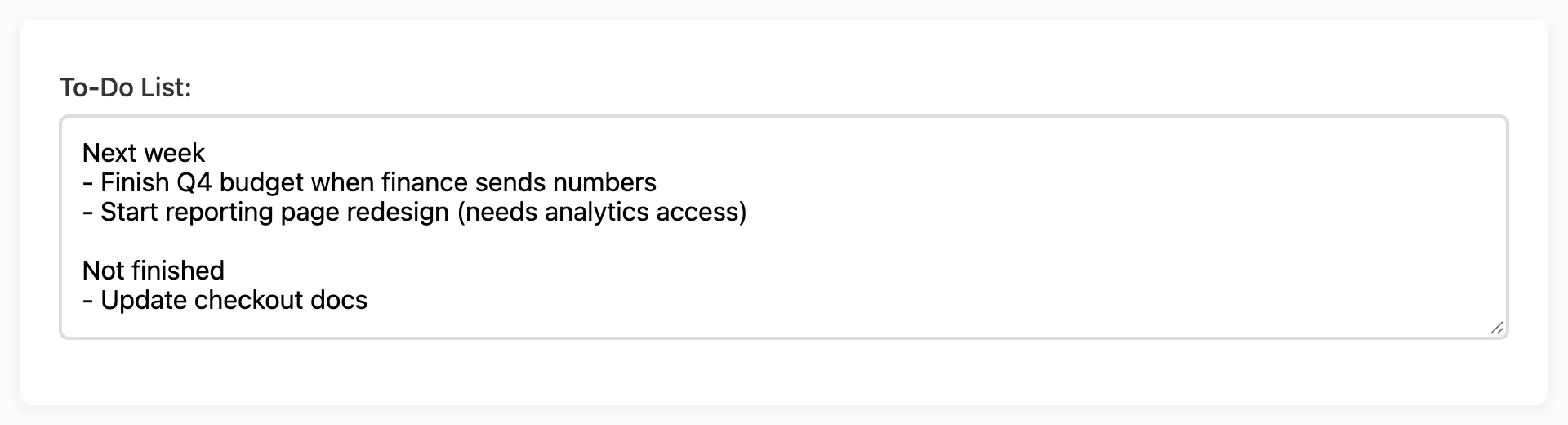
Keep each line short and specific. "Update checkout docs" is easy to act on. "Docs" isn't.
On Monday morning, open the app and start with this list. The unfinished tasks are already waiting, so nothing gets dropped between weeks. When you finish an item, log it as a task and delete the line. The list only holds what's still open.
Tip: If you use the app on more than one device, an account saves the To-Do List online along with your tasks. As a guest, it stays in the browser you typed it in.
Friday: build the report in 15 minutes
With the week logged, the report is mostly copying and trimming. Do it on Friday, before the week ends. The Week view in the Time Report shows the current week, Monday to Sunday, so it's easiest to read while you're still in that week.
1. Clean up the log
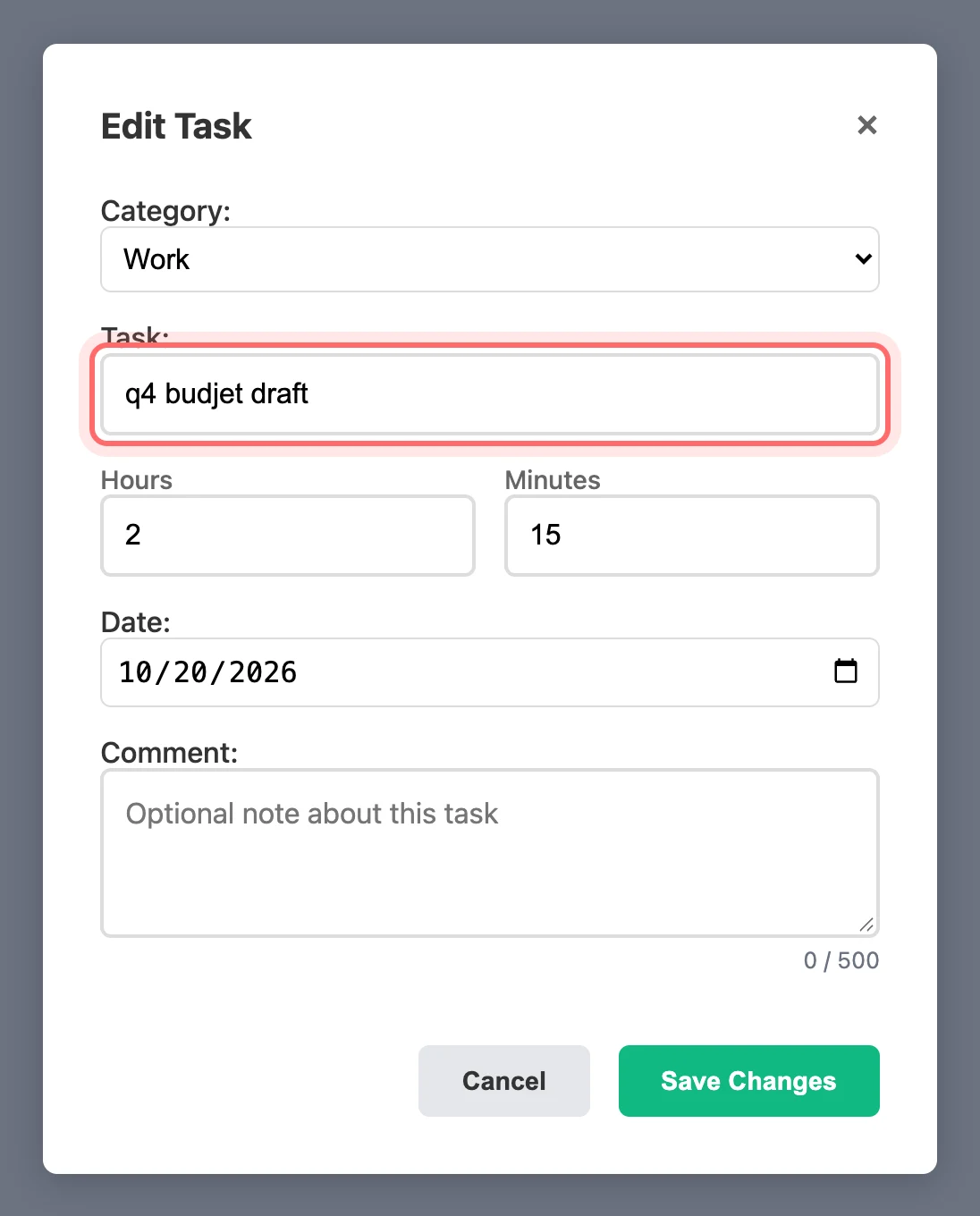
Open the task table and click the Date header to sort it. Look for typos, wrong times or tasks in the wrong category, and fix them with the Edit button. If "Q4 budget draft" and "q4 budjet draft" both show up, rename one to match. Small fixes like these make your totals right.
2. Get your hours from the Week view
Open the Time Report and switch to Week. The tiles at the top show your total time and the time for each category. The stacked bars show which days went where.
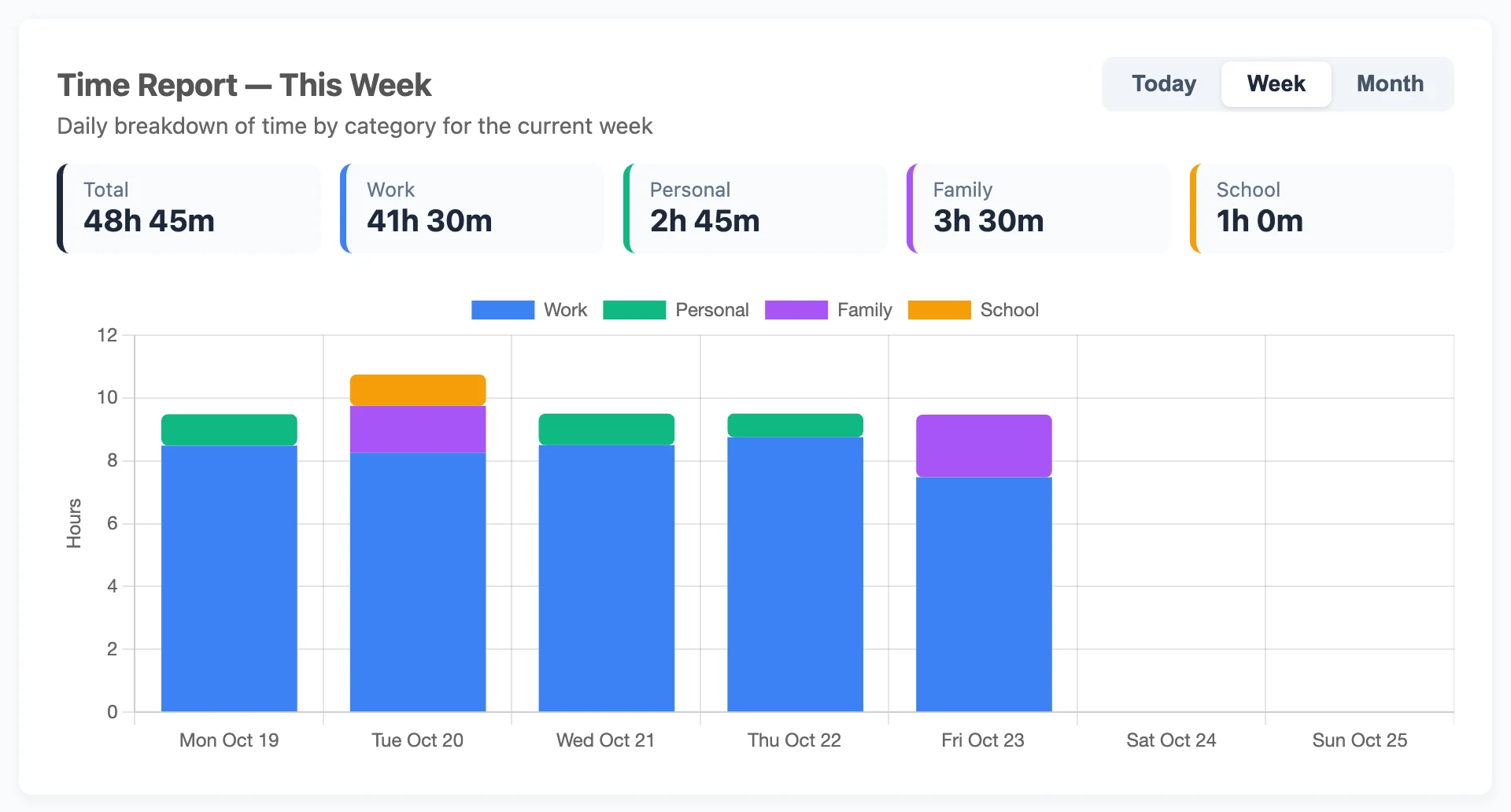
Copy the total and the Work number into the "Time this week" line. If one day was eaten by meetings, the chart makes that easy to see, and easy to explain.
3. Copy the Recorded Tasks text
The Recorded Tasks box lists everything you logged as plain text, grouped by day and then by category, with the total time for each. Select this week's days and paste them into a draft. You now have every task in one place, with no retyping.
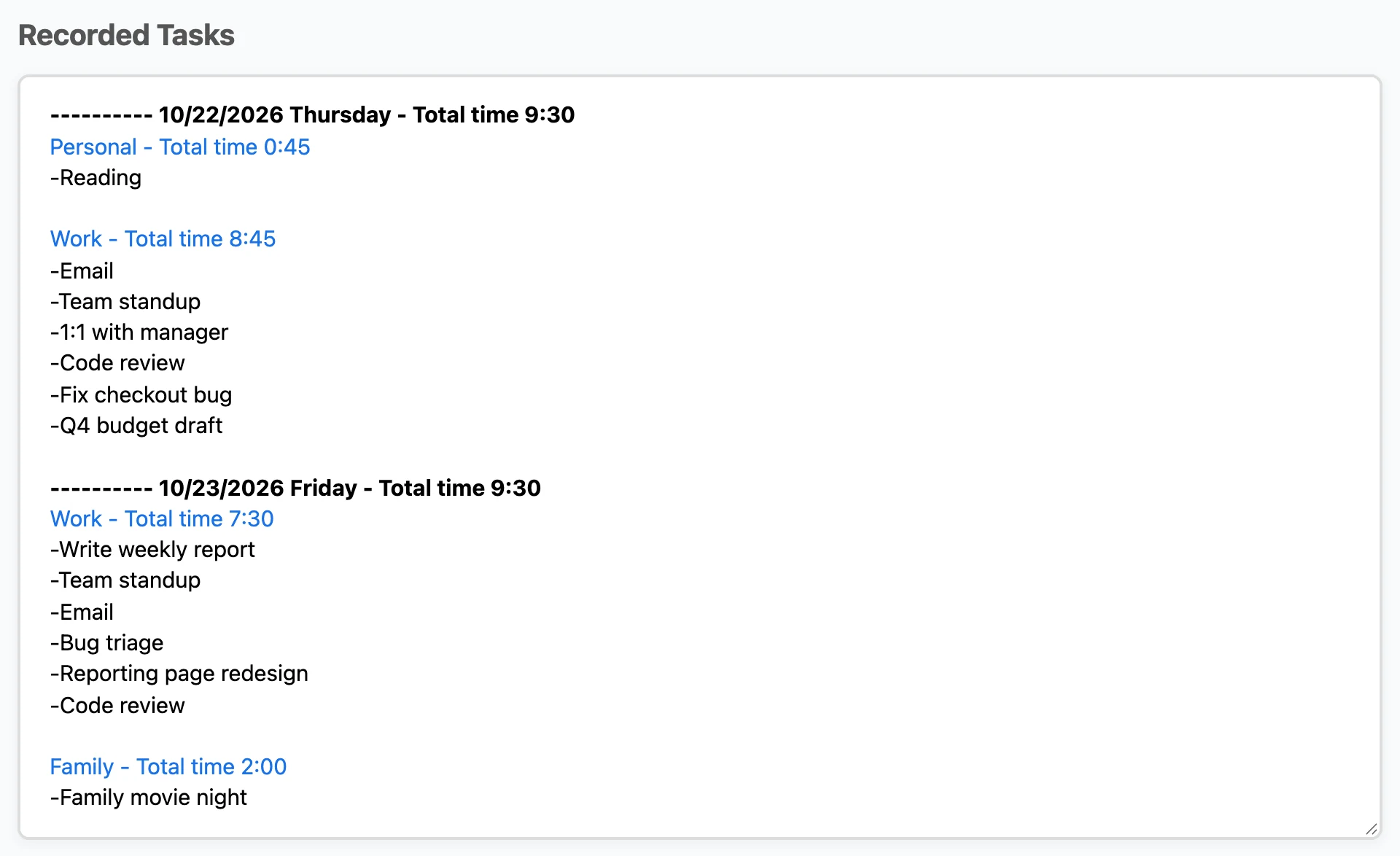
Don't send this list as it is. It's your raw material. Group related tasks into a few results for the "Done this week" section. Five lines about outcomes read better than twenty lines about tasks.
4. Pull in your comments
Your comments are where your results and blockers come from. In the app, tasks with a comment show a small speech bubble in the task table. Hover over it to read one note.
To read all of the week's notes at once, click Download CSV and open the file in Google Sheets or Excel. Every note is in the Comment column. Filter the Week column to this week's number, then filter the Comment column to hide empty cells. You're left with one list of everything you wrote down.
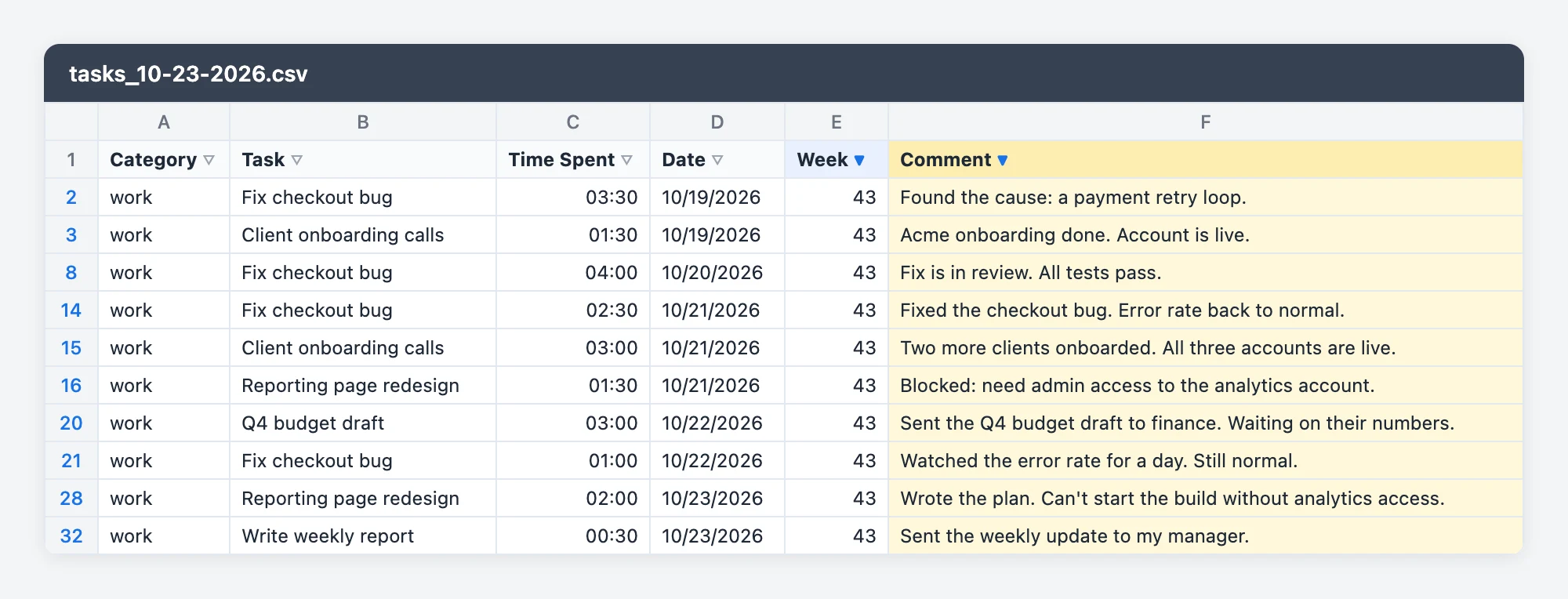
Copy the useful sentences into the report, and move anything that starts with "Blocked:" to the Blockers section.
5. Add next week's plan
Open your To-Do List. The "Next week" items go into the Next week section of the report. Keep it to the two to four things that matter most.
Don't hide the unfinished tasks. Add each one to Next week with "carried over" at the end. Your manager sees what moved, and you have a plan for it. If something is stuck because you're waiting on someone, put it in Blockers too.
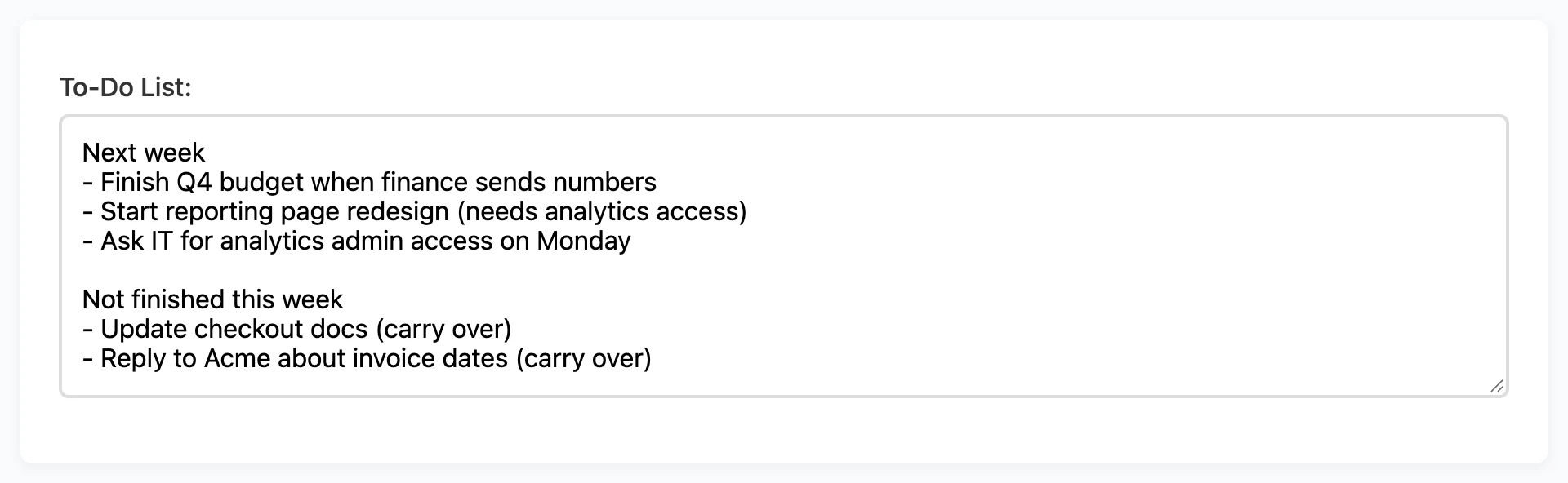
Then tidy the list for Monday. Delete what you've already done, and leave the rest. Next Friday, you start from a list that's already up to date.
6. Attach the CSV if your manager wants detail
Some managers want the full list of hours. Use the same CSV file, and set two filters:
- Week: this week's number, so only this week shows.
- Category: work only. Your manager doesn't need to see the gym or family dinner, and your personal tasks stay private.
Then add a total under the Time Spent column. It should match the Work tile in the Week view. Your comments sit next to each task, so the sheet explains itself.
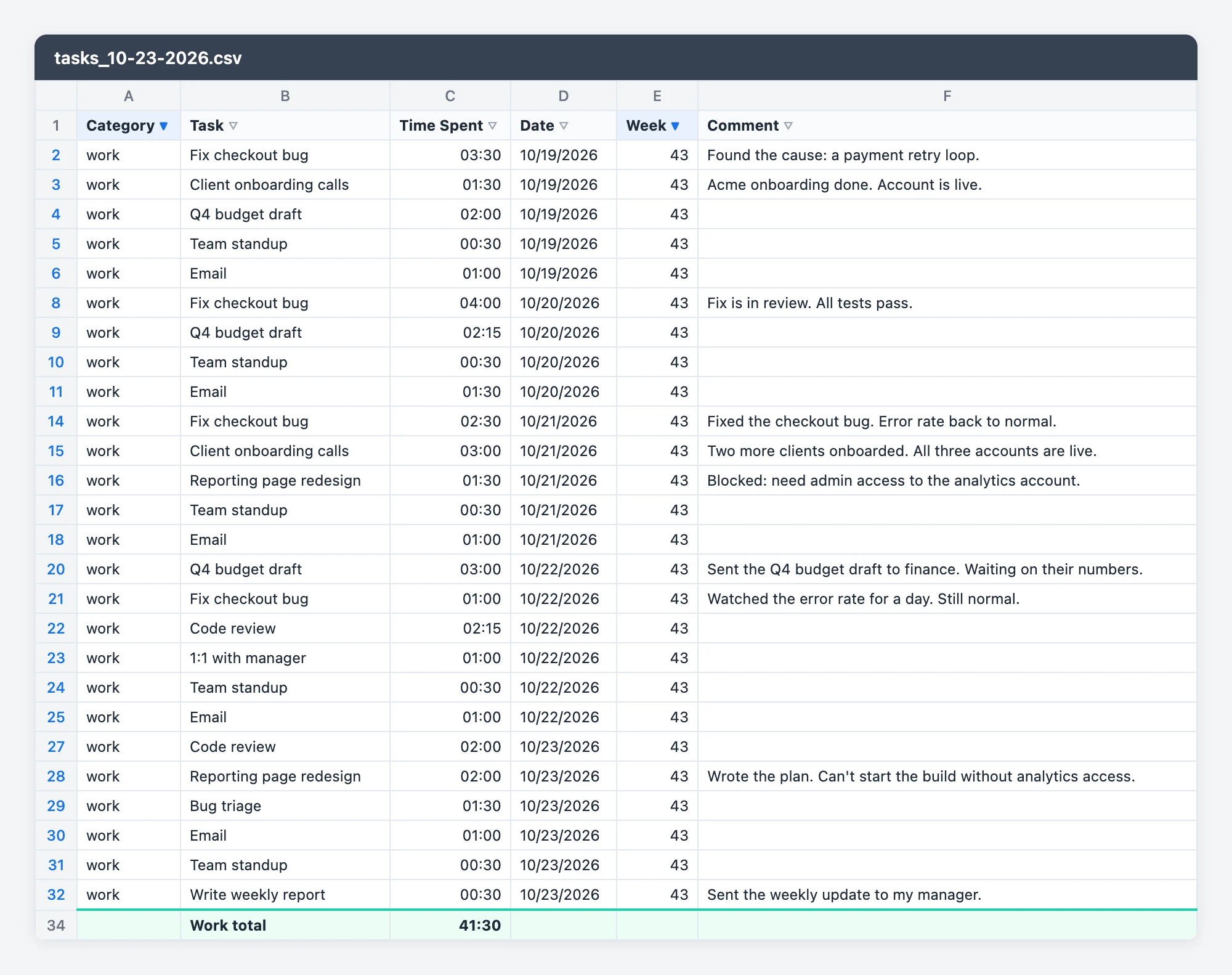
Tip: Category values in the CSV are lowercase, so look for "work" in the filter list. A plain SUM of Time Spent can look wrong past 24 hours. Format the total cell as Duration in Google Sheets or [h]:mm in Excel.
For more on the CSV and the other features, read IAM Rate features: from logging a task to sending a clean work report.
What a finished report looks like
Here's an example built from the week in the screenshots above. Every line came from a task name, a comment, the Week view or the To-Do List.
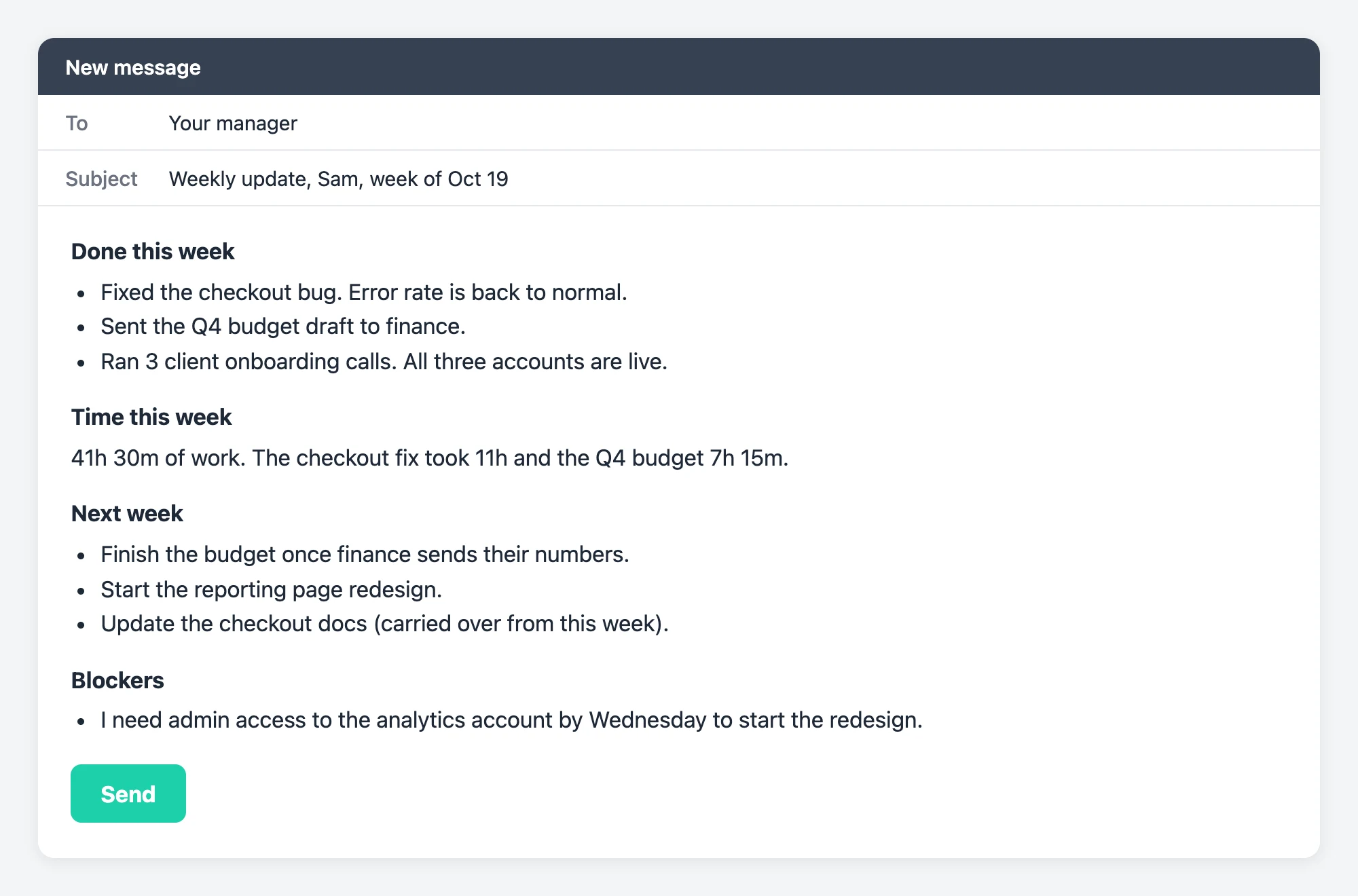
It takes a minute to read, and your manager knows exactly where things stand. It took a few minutes to write because the facts were already there.
Tips that make any weekly report better
- Lead with results. "Launched the booking page" says more than "worked on the booking page for 12 hours." Use hours to back up the result, not replace it.
- Raise blockers early. If you need something, put who and when in the same line. A blocker your manager hears about on Friday is better than one they hear about at the deadline.
- Keep the same format. When every report looks the same, your manager can compare weeks at a glance.
- Send it at the same time. Friday afternoon or Monday morning, pick one and stick with it. It becomes a habit for both of you.
- Be honest about slow weeks. If a week went to meetings or a fire drill, say so. The Week view gives you the numbers to show it.
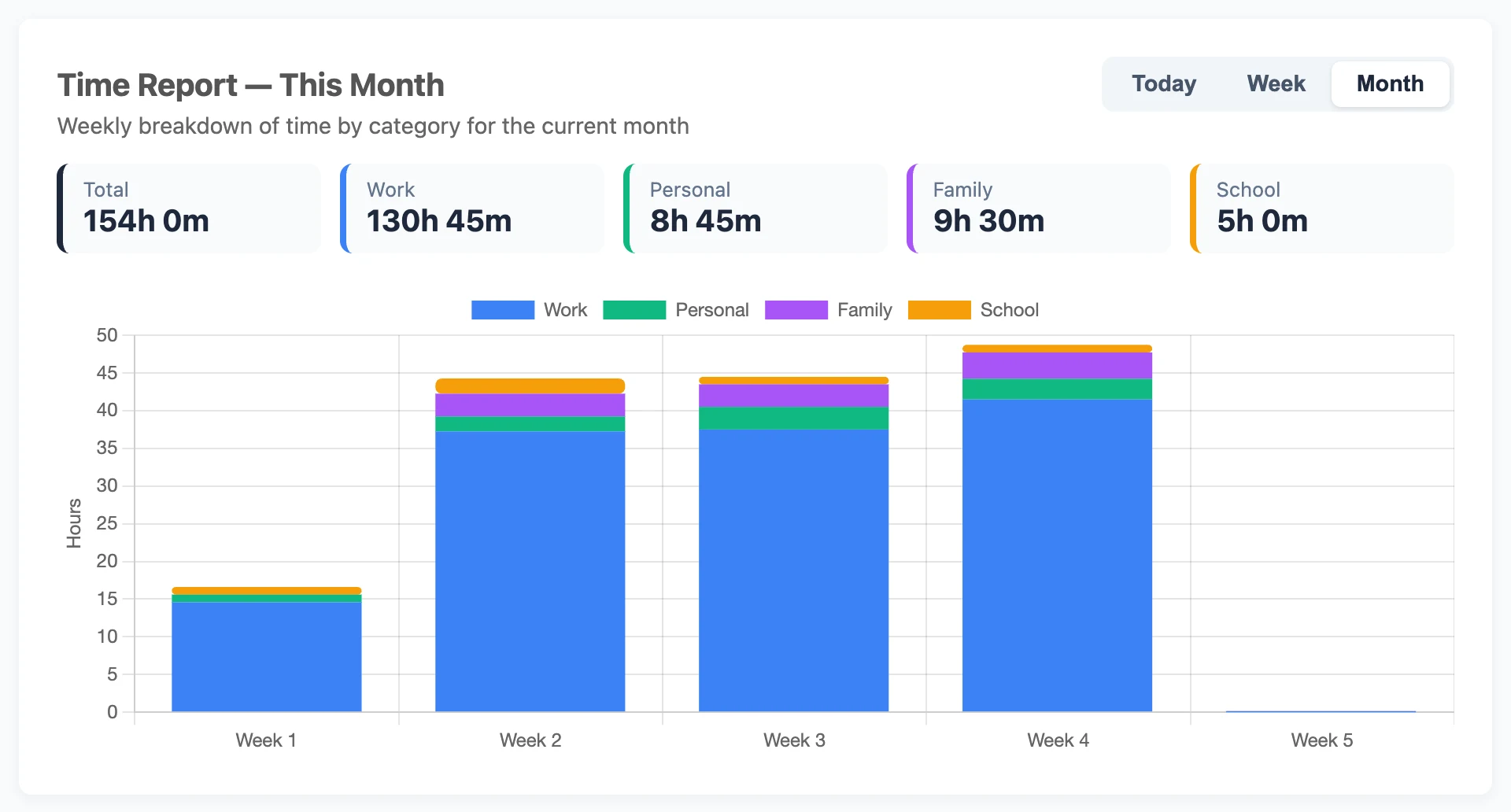
The Month view helps with the last two tips. It shows the current month week by week, so you can see a slow week next to a normal one.
Log on your phone, write on your laptop
A lot of work ends away from your desk, after a meeting or on the way home. IAM Rate works on a phone, and you can install it from Chrome so it opens like an app.
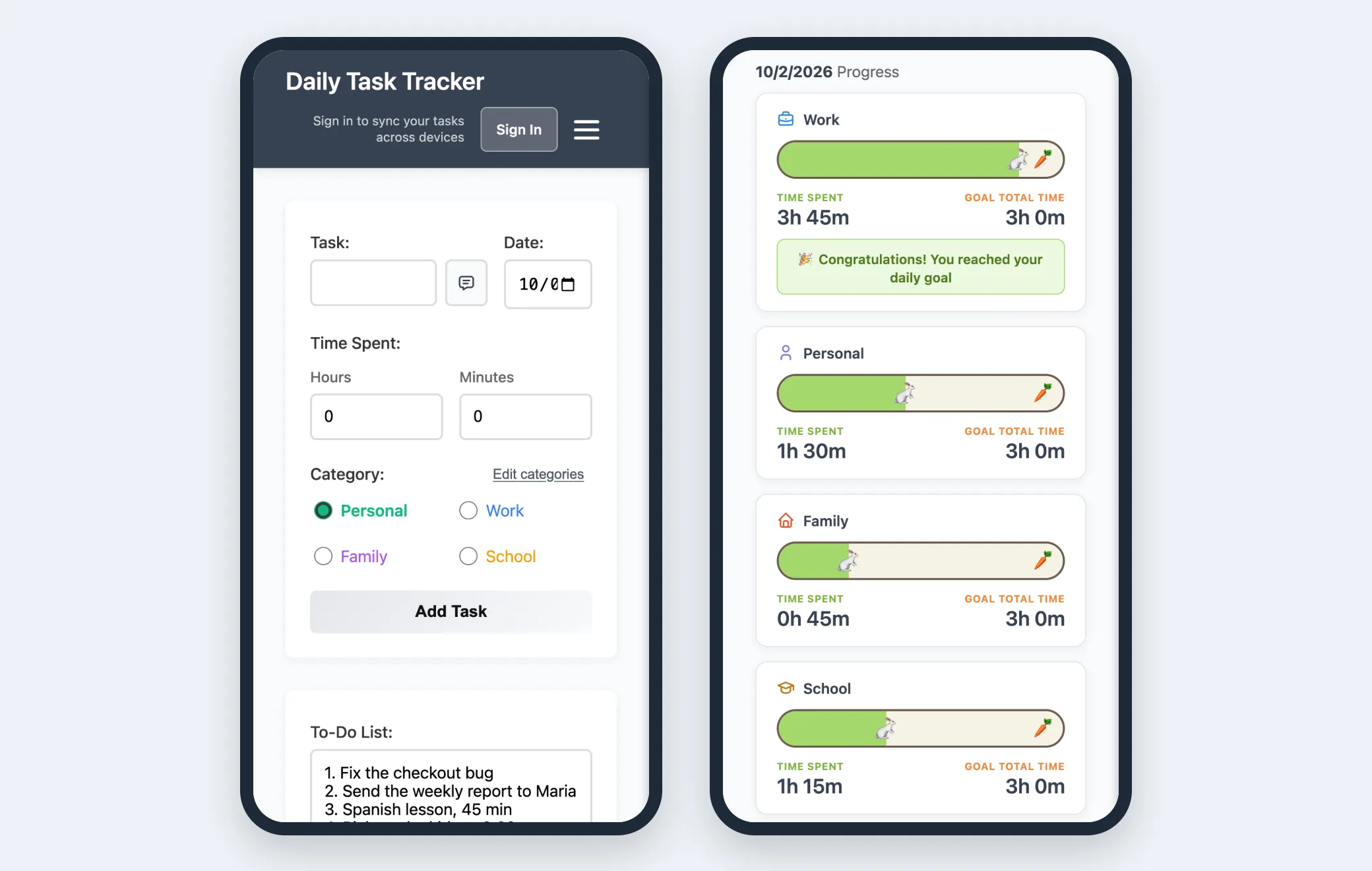
You can use every feature for free as a guest, with no sign-up. Guest tasks are saved in that browser only. If you want to log tasks on your phone and build the report on your laptop, an account saves your tasks online and shows the same data on every device. It costs $1.50 per month, billed yearly at $18.
Start with this week
You don't need to change everything at once. Today, log what you've done so far and add one comment to one task. Do the same tomorrow. On Friday, open the Week view and the Recorded Tasks box, and see how much of your report is already written.
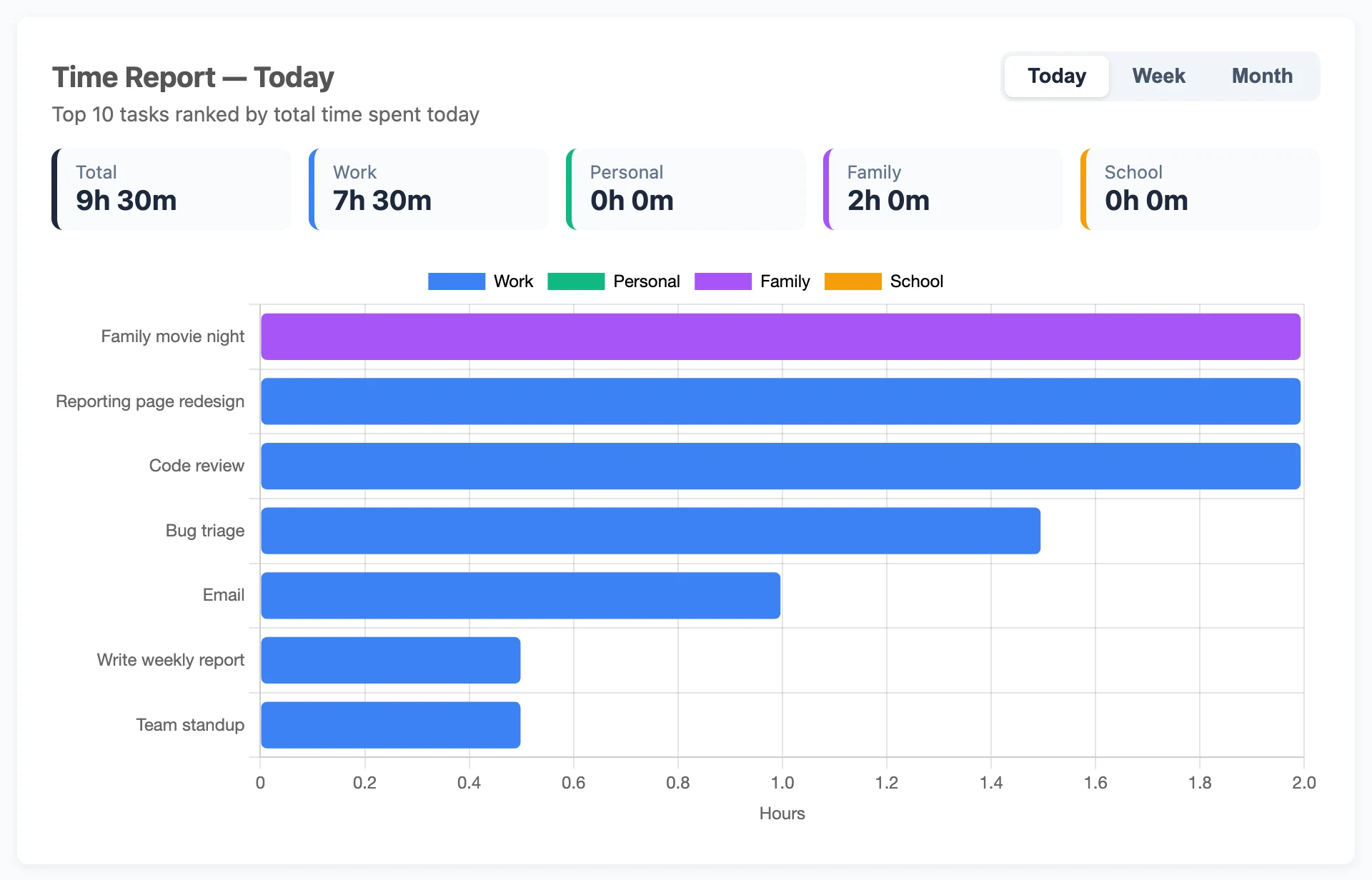
If you want to know why this works beyond reports, read why tracking your time makes you more productive.
Put this into practice today
Daily Task Tracker is a free to-do list and time tracker. You don't need an account to start. Your tasks save right in your browser.
Go to App